Tagging and categorising documents
Hemma sorts documents two ways. The type — invoice, quote, permit, plan, photo, and so on — is set automatically when the document arrives. Tags are free-form labels you add yourself. This article is about tags.
01What tags are for
Tags are how you find a document by topic six months later, when you cannot remember the contractor name and the file name is scan_001.pdf.
A few things tags do well:
- Group documents that belong to the same room, phase, or trade. "Bathroom", "phase-3", "electrical".
- Mark documents that need follow-up. "to-pay", "to-review", "decision-pending".
- Keep parallel tracks visible. "main-house" vs. "garden-shed" if you are building both.
There is no rule about how to tag. Use whatever vocabulary makes sense to you. Hemma's search will match what you type.
02Where to tag
Open any document detail page. The tags row sits just under the title bar on desktop. On mobile it is one tap behind the Tags icon.
To add a tag, type the name. Hemma suggests existing tags from your project as you type, plus the standard construction vocabulary — electrical, plumbing, hvac, roofing, foundation, structure, finishing, supplies, labour, permit, deposit, instalment, warranty, and so on. Tap a suggestion to accept, or hit Enter to add a new one.
To remove a tag, tap the small × on the chip.
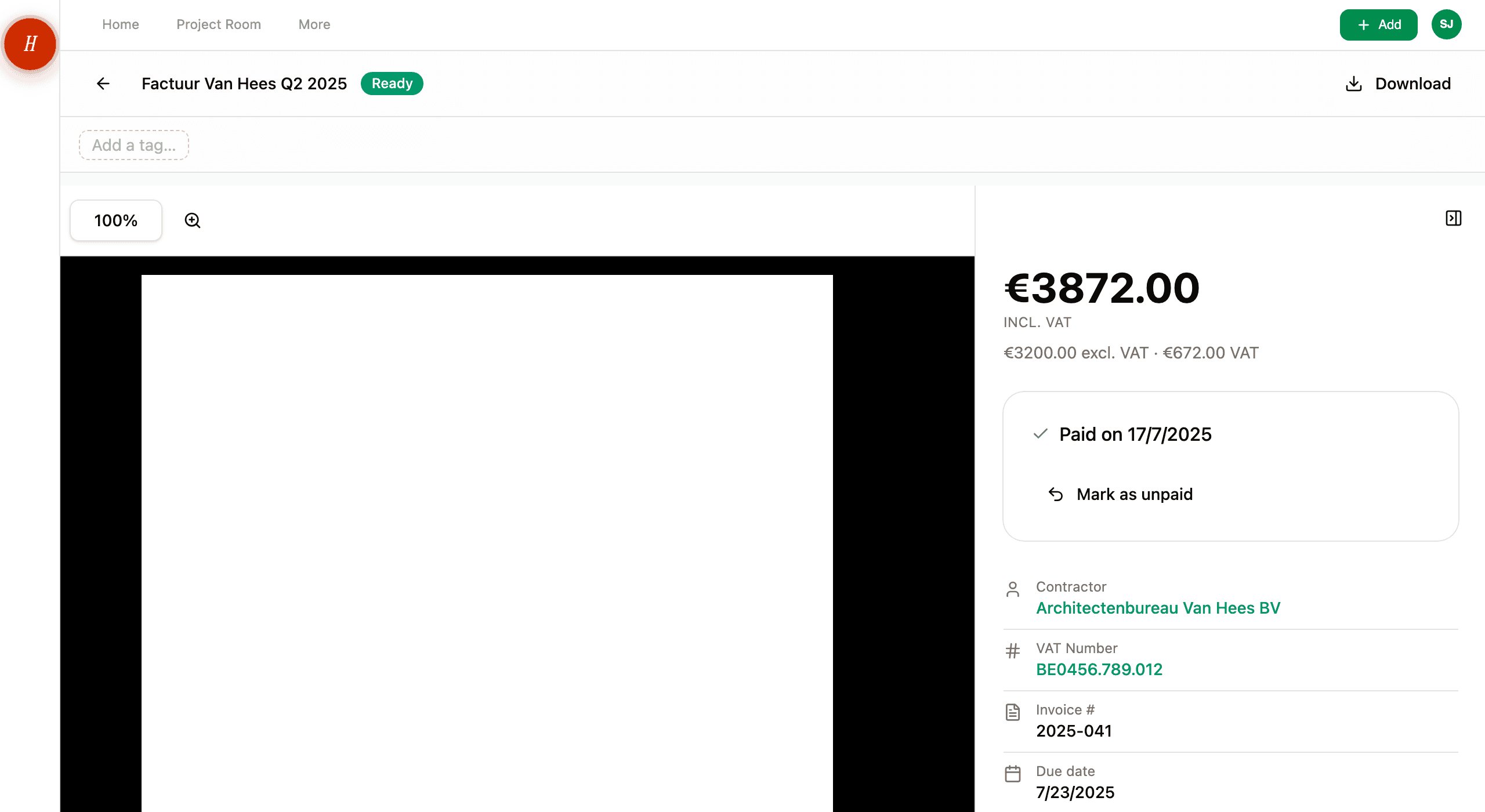
There are about fifty pre-baked tags from a Belgian construction vocabulary — trades, phases, materials, document context. Pick from the suggestions when you can. It keeps everyone in your project using the same vocabulary, which keeps search consistent.
03Categorising — the part Hemma already did
You do not categorise documents in Hemma. The type field — invoice, quote, permit, plan, photo, inspiration, tech doc, other — does that for you, and Hemma sets it automatically based on the document's content.
If the type is wrong, you can change it on the detail page. See reviewing and correcting what the AI extracted for when Hemma asks you to confirm a type, and what kinds of documents Hemma understands for what each type means.
So the mental model is:
- Type: what kind of document this is. Set by Hemma.
- Tags: what topic, room, or status it relates to. Set by you.
Both are searchable from the Files page.
04Tag limits
A document can have up to twenty tags. Each tag is between one and a hundred characters. Slashes, dashes, and dots are fine. Spaces are fine but make tags harder to type later — kitchen-renovation is more usable than kitchen renovation.
There is no project-level cap on the number of unique tags you can create. The same tag applied to thirty documents counts as one tag.
05Common questions
Should I tag every document? No. Tag documents you might want to find by topic later. A one-off photo of a wall socket probably does not need a tag. A contractor quote that you are weighing against another quote probably does — tag both with the same project topic, then search that.
My partner uses different words for the same thing — does that break things? Yes. If one of you tags as "kitchen" and the other as "keuken", a search for one will miss the other. Pick a vocabulary together. Hemma's suggestion list is a good starting point — they are all English by design, exactly to keep this from happening across languages.
Can I rename a tag everywhere? Not in one click. Edit the tag on each document. The pre-baked vocabulary exists partly to keep this from being a problem — if you start from suggestions, you are unlikely to need to rename.
Are tags shared with my team? Yes. The whole project sees the same tags on the same documents, and the suggestion list pulls from every tag any project member has used.
06What if it goes wrong
- Cannot find a document by tag? Check that the tag is spelled exactly the way you applied it (search is exact for tags). See I can't find a document I uploaded.