Reviewing and correcting what the AI extracted
Hemma reads every invoice and quote twice, with two independent AI readers. Most of the time they land on the same thing, the data is trusted, and you never have to think about it. When they differ, a third model holds both readings against the document itself and decides. What is still open after that lands in Needs review.
This is the article that walks you through resolving one.
01How you find a Needs-review document
There are three places.
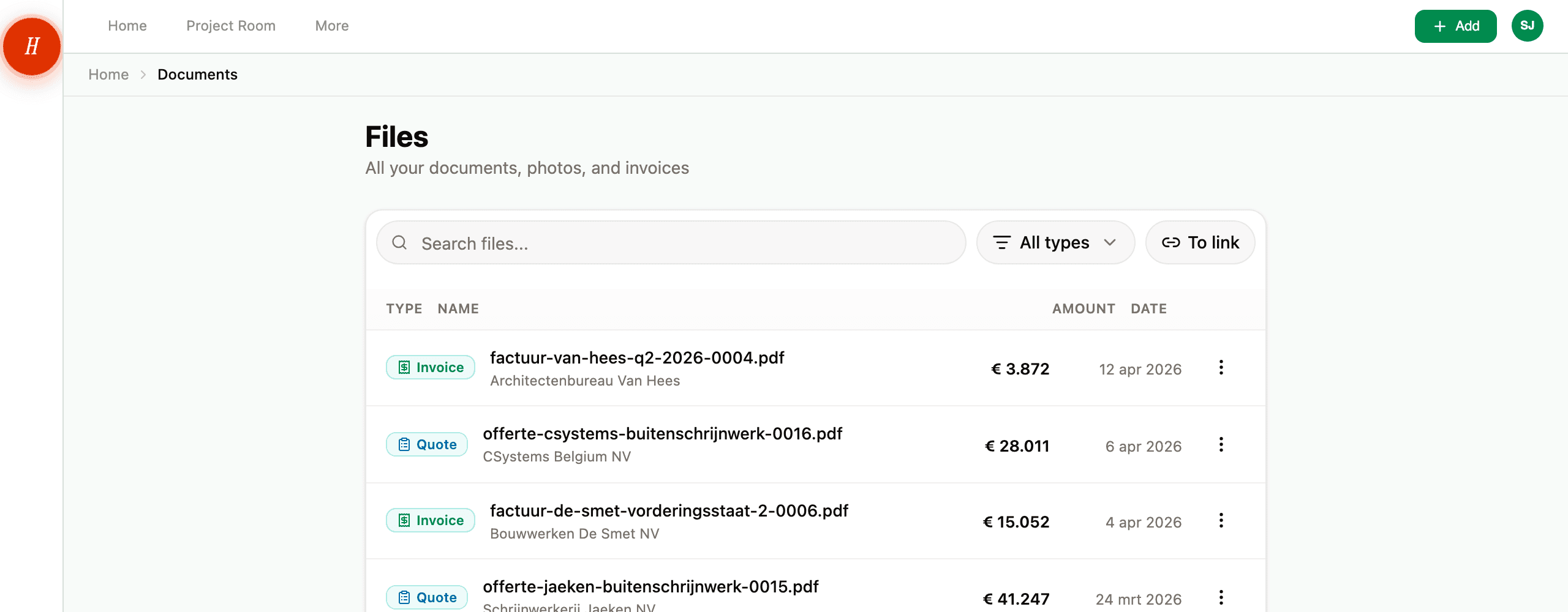
- The amber strip at the top of the Files page tells you how many documents need your input. Tap Needs review to filter the list down to just those.
- Open any one of them and you land directly on the review screen — no extra click.
- The morning digest mentions it too, if you have notifications on.
02Five kinds of review
The screen looks slightly different depending on what Hemma was unsure about.
"Help me identify this document"
Shown when the AI was less than 80% confident about what the document is. Hemma did its best guess but wants you to confirm before extracting financial fields with the wrong assumptions.
What you see: a dropdown listing every type — Invoice, Quote, Permit, Plan, Photo, Inspiration, Tech doc, Other. Pick the right one and tap Confirm. Hemma re-runs the extraction with the correct type and the document moves on.
"Does this match?"
Shown when Hemma could read the invoice but is not confident enough to file it without your glance.
What you see: the details Hemma pulled out, in one list: the total amount, the VAT number, the invoice number, the date, the due date. Hold them next to the document and tap Confirm details. You are not choosing between two AIs, you are checking what is there.
A value looks wrong? Confirm anyway, then edit it on the detail page. The original file never changes.
"What is the invoice number on this invoice?"
Shown for invoices where Hemma could not read the invoice number usably: either the document printed none we could find, or what it printed was too short to be a real number. This screen also appears when both readings agreed, because agreeing on an unusable number does not get you any further.
What you see: the document next to a single input. If something was read, it is already filled in so you can correct it rather than retype it. Find the number on the invoice, complete it, and tap Save invoice number.
Why this one field: the invoice number is part of the payment details. A wrong number on a transfer costs your contractor time tracking the payment down.
"Do these items match?"
Shown for invoices and quotes when the totals came out right but the two readings listed the individual items differently (a different number of lines, different descriptions).
What you see: the list Hemma settled on, one row per item with its amount. Hold it next to the document and tap Confirm items. You are not picking between two AIs, you are checking a list. The document-level numbers are unaffected either way.
"What do these items cost?"
Shown for invoices and quotes whose items do not add up to the total printed on the document: every item reads € 0.00, the sum is too far off, or Hemma found no total at all. This screen also appears when both readings agreed, because two readers can agree perfectly on arithmetic that cannot be true.
What you see: the total at the top, and below it every item with an input. Hemma adds up as you type and says whether it matches the total. A small rounding difference is fine: only a real gap (more than € 1.00 or 1% of the total) is worth another look.
Rather not type every item out? Tap Take the total as a single line. Hemma puts the whole amount on one item so you can still link the document to your budget. The individual descriptions do disappear.
Why this matters: with € 0.00 on every item there is nothing to link to your budget, and a € 29,988 quote would land in your figures as € 0.
03What happens after you confirm
The document moves out of Needs review and into the regular flow. Amounts, dates, and the contractor are now trusted. The data starts driving budget signals and dashboards.
Behind the scenes, Hemma also writes an audit record: what each AI predicted, what you chose, which fields you corrected. That record lives with the document. If you ever wonder why the budget shifted by a few euros, you can trace it back.
You are correcting one document, not training the AI. Hemma does not retroactively change other documents based on what you picked here. If a contractor's name keeps coming through wrong on every invoice, that is a separate fix — see the AI extracted the wrong amount or contractor.
04You can override later too
The fact that a document is Trusted does not mean the values are locked. Open the document detail page any time. Every field — contractor, amount, date, type, tags — is editable. The original file never changes.
This is the glass-box principle: AI proposes, you decide, and you can change your mind whenever you want.
05Common questions
Then why is Hemma still asking me? Because the difference between two readings is sometimes real and not just a matter of notation. Hemma works that out against the document first; when doubt remains, you get to see it rather than have it swept away. You never have to choose between AIs, only to say whether what is there matches.
What if a value is not right? Confirm anyway, then edit the field on the document detail page afterward. The audit log captures both the confirmed value and the edit.
The "Help me identify" dropdown does not have the right type for my document. Pick Other. Hemma will store the file untouched and you can rename or tag it from the detail page.
How long does Hemma wait before flagging? Not at all — the review state is set during processing, which takes about thirty seconds. There is no extra delay added on top.
06What if it goes wrong
- Document seems to have been sitting in Needs review for a long time? See a document is stuck in "Needs review".
- You confirmed but the values still look wrong? See the AI extracted the wrong amount or contractor.